Right after you sign up, Tourfect takes you through four short steps to get your site ready: your business, your look, your logo and colour, and your first tour. It takes a few minutes, and you can skip any step. You can change everything later.
Step 1: your business
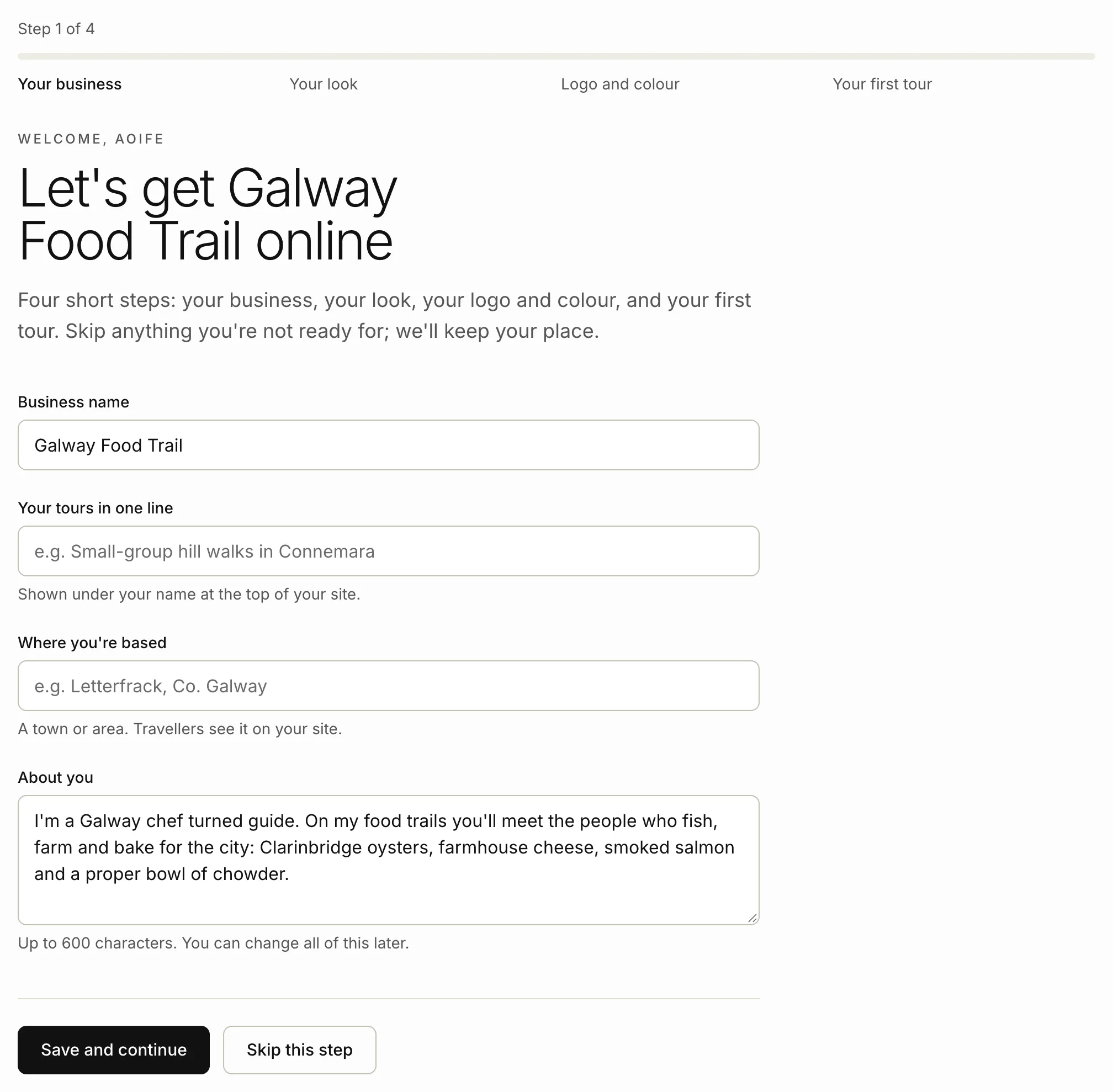
- Check your Business name.
- In Your tours in one line, describe what you do, like “Small-group hill walks in Connemara”. It shows under your name at the top of your site.
- In Where you’re based, type a town or area. Travellers see it on your site.
- In About you, write two or three sentences: who you are, where you guide and what makes your tours special.
- Click Save and continue.
Step 2: your look
The page shows live previews of your own site in each theme.
- Click the theme you like.
- Click Save and continue.
You can switch theme any time under Branding.
Step 3: logo and colour
- In Logo, choose your logo file: PNG, JPEG or WebP. A square logo works best. If you don’t have one yet, skip it and your site shows your name.
- In Brand colour, pick your colour, or click one of the suggested colours. It goes on buttons and highlights, and we keep the text on it readable.
- Watch the preview change as you choose.
- Click Save and continue.
Step 4: your first tour
- Type the Tour name.
- Write a Description: what travellers will do and see, how it runs and who it suits.
- Add some Highlights, one per line. These are optional.
- Type the Price per person.
- Choose How long it takes, in hours and minutes.
- In Where it happens, type the town or area.
- Add Photos, up to 8. The first one is the cover.
- Click Save and finish.
If you see Write with AI at the top, you can type some rough notes about the tour and let AI fill in the name, description and highlights for you to check. See Writing with AI.
The tour is saved as live, so it shows on your site as soon as your site is public. You can add more details later, like the meeting point and what’s included. See Add your first tour.
When you’ve finished
The last page has View my site and Go to my dashboard, and a few next steps, like adding reviews and FAQs. Your site stays private until you’ve confirmed your email and the Tourfect team has approved it. See Confirm your email and Send your site for review.
Skip, go back or finish later
- Skip this step moves on without saving that step.
- Back goes to the step before. It shows from step 2 on.
- Finish later, at the top of the page, takes you to your dashboard. We keep your place: next time you log in, you go back to the same step.
While the setup isn’t finished, Home shows Finish setting up your site. Click Continue setup to carry on. To close the guided setup instead, click I’ll do it myself, then OK. Once you’ve confirmed your email, the checklist on Home shows what’s left. See Your setup checklist.
Related articles
Still stuck? Contact us
Tell us what you're trying to do and where it went wrong. We reply by email within a working day.
Contact us