Travellers can ask for any day from today, unless you mark it. You set a tour’s start times when you edit it, and mark days on its Availability calendar. The booking form on your site only offers the days and times that are open.
Mark days you’re away
When you’re away, mark the days once and every tour closes for them. Travellers can’t ask for those days, and your tours don’t show in tourfect.ie’s search for those dates. Bookings you already have stay as they are.
- In your dashboard, click Availability.
- Under Tell us when you’re away, type your days off in your own words, for example “Away 3 to 10 March, every Sunday in April, and Christmas week”. On a phone you can tap the microphone on your keyboard and say it.
- Click Find the days.
- Check the list. Untick any day that’s wrong.
- Click Mark these days away.
You can also choose the first and last day under Pick the days instead. Nothing changes until you click Mark these days away, and Undo takes back what you marked.
Pro has no monthly limit on reading your days with AI. Starter includes 3 reads a month to try it, and Pick the days always works.
Your away days are listed on the same page. Click Open again beside one to open those days on every tour. A tour you add later is closed on your away days too.
Part days, like mornings only, aren’t marked this way. Mark them by start time on the tour’s own calendar, below.
Set start times
Start times are optional. Without them, travellers ask for a day and you agree the time by email.
- In your dashboard, click Tours.
- Click the tour’s name.
- Click Edit tour.
- In Start times (optional), type the times with commas between them, for example “9:30am, 2pm” or “09:30, 14:00”.
- Click Save changes.
A tour can have up to 8 start times. Travellers pick one when they ask for a date.
Mark days on the calendar
- Click Tours.
- Click the tour’s name.
- Click Availability.
- Use the arrows beside the month’s name to go to the month you want.
- Click each day you want to change. To select a range, click the first day, then hold Shift and click the last day. To select every Monday in the month, click Mon at the top.
- If the tour has start times, choose The whole day or one time under For.
- Click Sold out, Not running or Open.
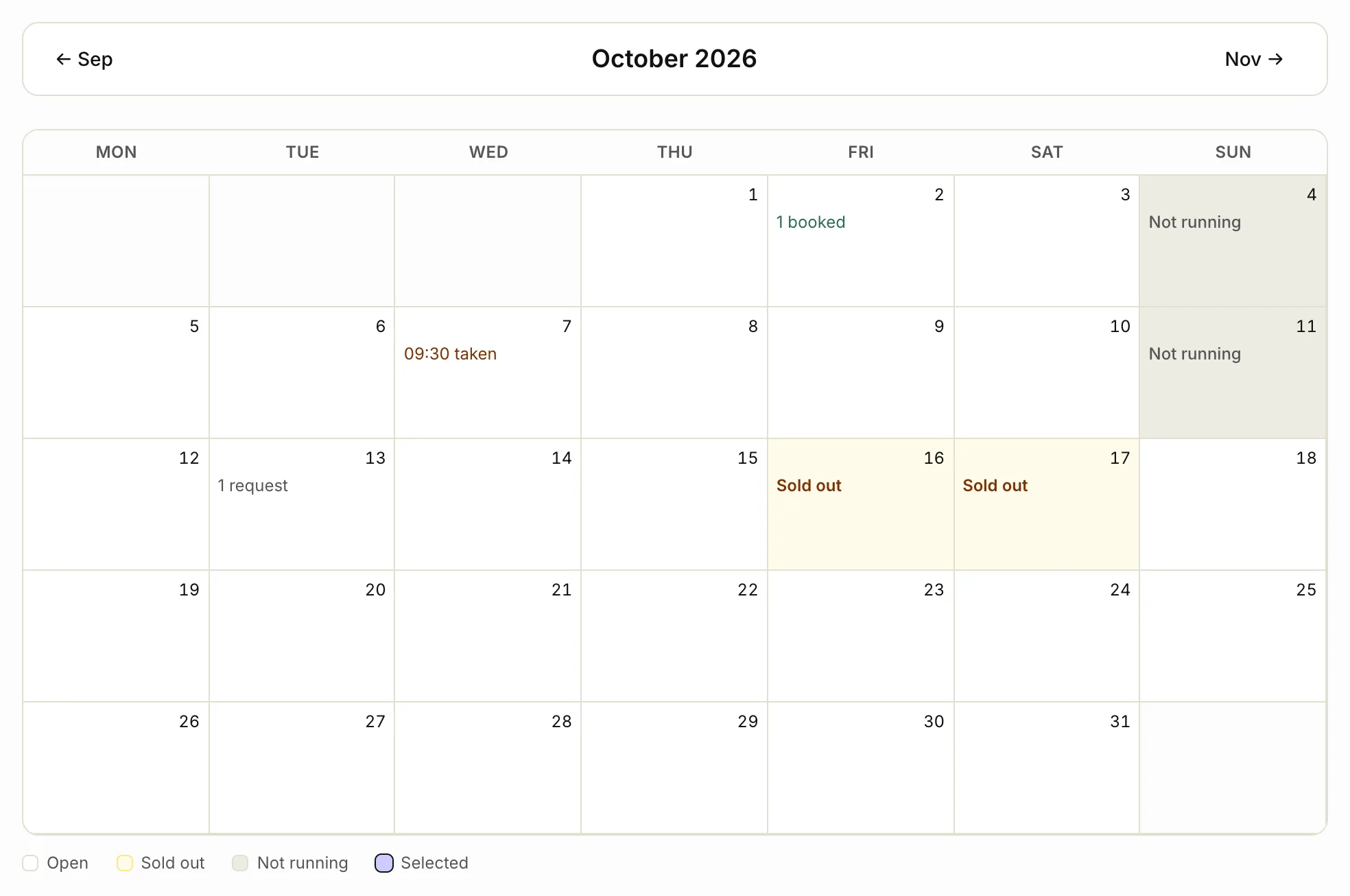

- Sold out: the day, or the time you chose, is full. Travellers can’t pick it.
- Not running: you don’t run the tour that day. Travellers can’t pick it.
- Open: travellers can ask for it again.
The calendar also shows how many people are booked on each day, and how many requests you have for it.
Repeat over several months
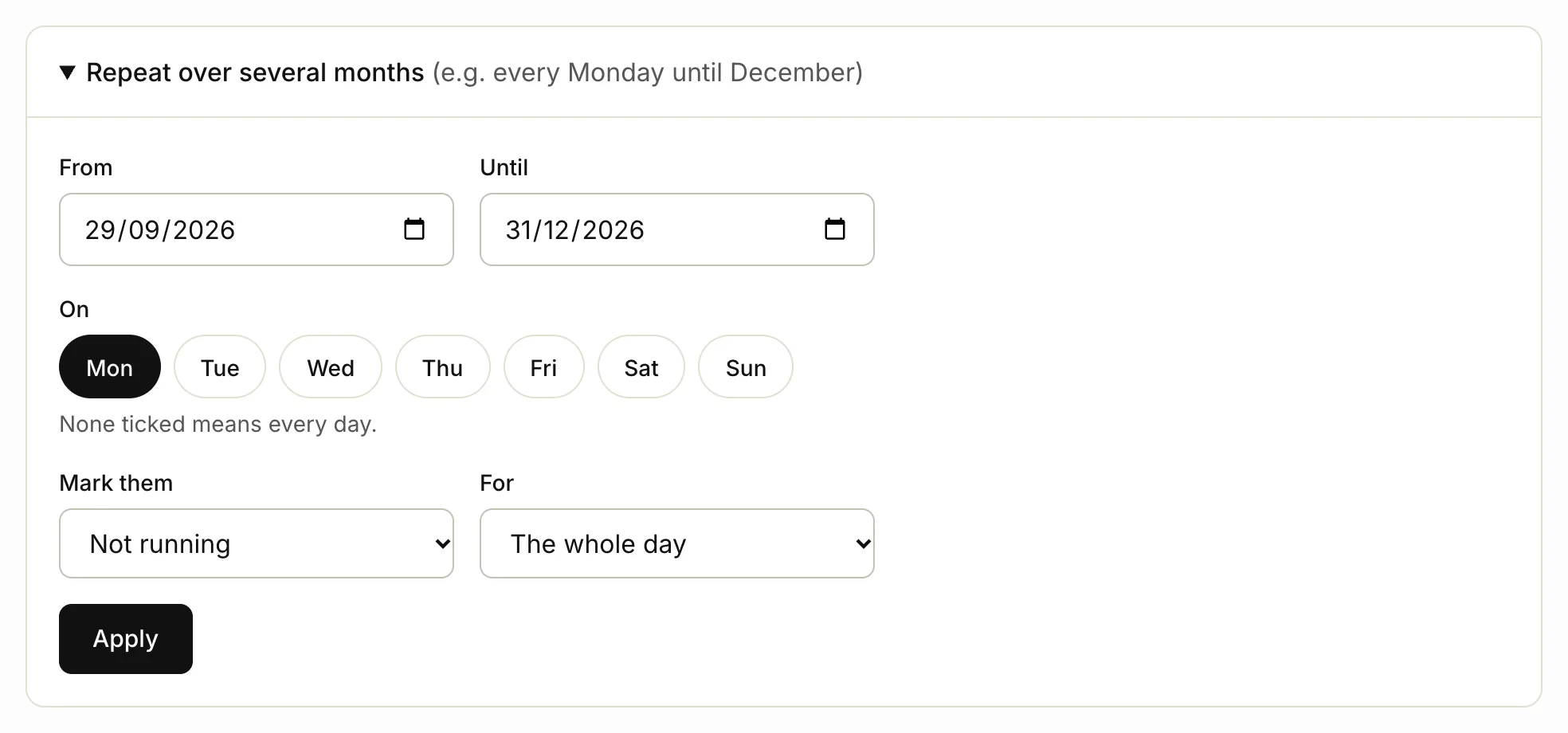
For example, to stop a tour on Mondays until the end of the year:
- On the tour’s Availability page, click Repeat over several months.
- Choose the From and Until dates.
- Under On, tick the days of the week, for example Mon. Tick none for every day.
- Under Mark them, choose Not running, Sold out or Open.
- If the tour has start times, choose The whole day or one time under For.
- Click Apply.
Related articles
Still stuck? Contact us
Tell us what you're trying to do and where it went wrong. We reply by email within a working day.
Contact usOr email support@tourfect.ie.